User Interface - 3.4.0.3
- Ayça Vural (Unlicensed)
- Berna Radoncic
Metus INGEST starts with a main user interface that is easy to use/to get used to.
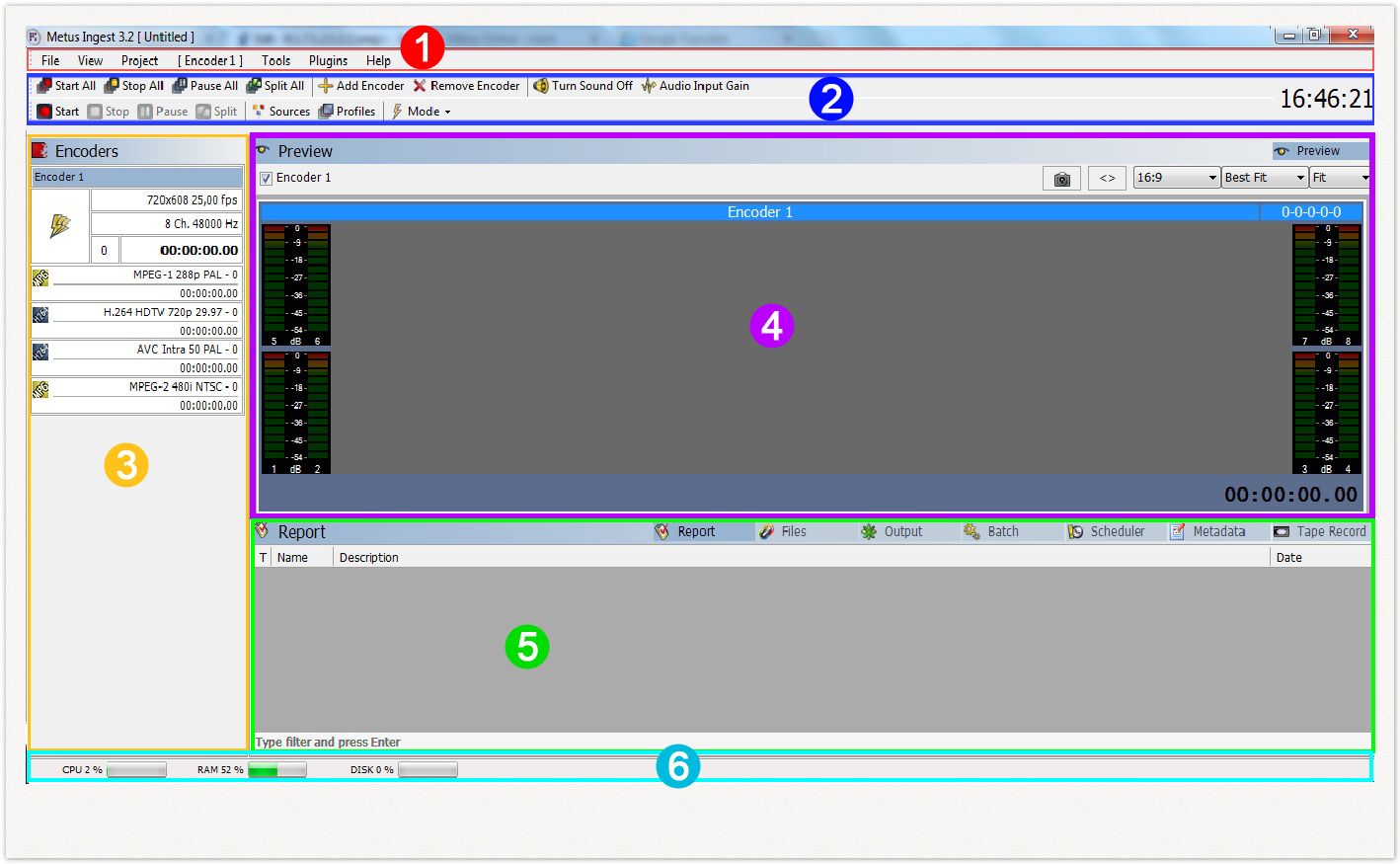
- Atop - There are classic application menus (1), and below that there is a toolbar (2) which is a group of most used action buttons.
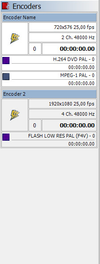
Left - Left panel (or encoder panel) (3) that shows all encoders and their encoding, source and profile information.
- Middle - Preview screen (4), which lets you to see previews for each encoder simultaneously or separately.
- Bottom – Bottom panel (5) that is a group of windows in tab mode (report, files, output, batch, scheduler, metadata and tape record windows), and below that the status bar (6) which shows usage rate for system components.
1 - Application Menus
File Menu
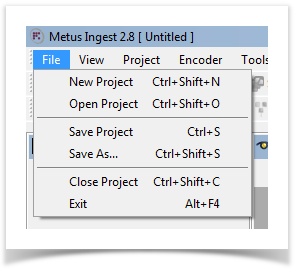
You can save source and profile settings for all encoders as well as other settings and information (such as schedule tasks or metadata information) as an INGEST project.
- New Project : Closes the current project and opens a blank one.
- Open Project : Opens a previously saved project.
- Save Project : Saves the current project with its existing name. If the project is untitled, INGEST will ask you for a project name.
- Save As... : Saves the current project with a different name.
- Close Project : Closes the current project and opens a blank one. (same with New Project)
- Exit : Exits Metus INGEST.
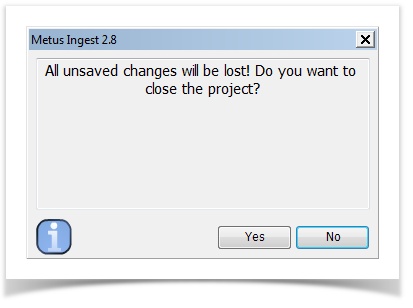
INGEST will remind you that all unsaved data will be lost before closing your current project.
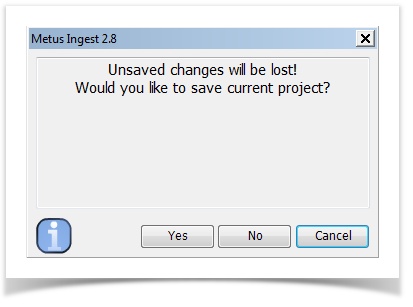
INGEST will remind you to save your current project before exiting the program.
These warnings can be disabled from General Settings.
View Menu
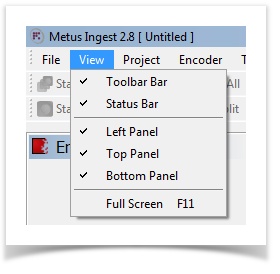
You can enable/disable the view for Toolbar, Status Bar, Left (Encoder) Panel, Top (Preview) Panel and Bottom Panel.
Full Screen switches to a full preview screen.
Project Menu
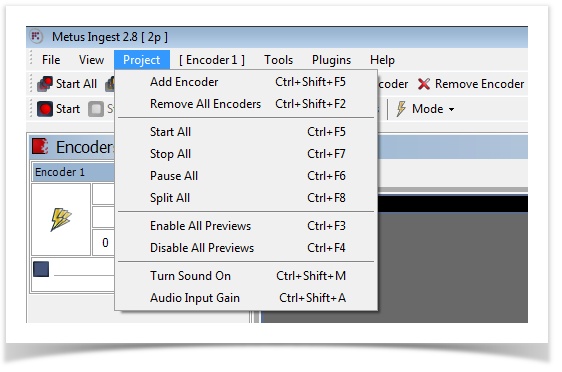
Please see Encoder Settings in Detail for detailed explanation for Add Encoder and Remove All Encoders.
Please see Quick Mode for manually encoding options Start, Stop, Pause and Split All.
You can view/close previews for all encoders with Enable and Disable All Previews. Please see Preview for detailed information.
Turn Sound On/Off : You can on/off sound for previews. This is not related with the processing source/profile audio, it only affects preview.
Audio Input Gain : Turns on Audio Input Gain, which allows user to adjust audio gain to be captured.
Encoder Menu
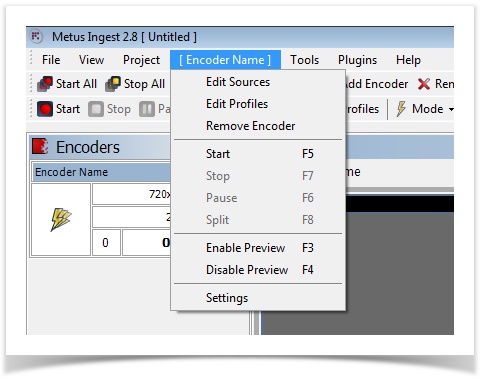
Encoder Menu changes to the name of selected/active encoder.
Edit Sources opens Edit Sources window. Please see Encoder Source - 3.2.0.0 for detailed explanation.
Edit Profiles opens Profiles window. Please see Encoder Profile - 3.2.0.0 for detailed explanation.
Remove Encoder removes the active encoder.
Please see Quick Mode for manually encoding options Start, Stop, Pause and Split.
You can view/close previews for the active encoder with Enable and Disable Previews. Please see Preview for detailed information.
You can adjust streaming settings for the active encoder with Settings. Please see Streaming - 3.2.0.0 for detailed information.
Tools Menu

You can use Options to reach Application Settings. Please see Application Settings for detailed explanation.
All Logs lets user to trace and filter all logs kept by Metus INGEST. Please see Ingest Logs - 3.2.0.0 for detailed explanation.
Screensaver enables you to adjust and start INGEST's own screensaver. Screensaver can be disabled by double-click on the Metus screensaver icon in the Windows taskbar.
Folder Watcher lets you to adjust settings/use/monitor the automated transcoding feature. Please see Folder Watcher for detailed information.
Plugins Menu
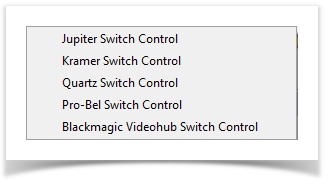
Metus INGEST supports switcher control for Jupiter, Kramer, Quartz, Pro-Bel and Blackmagic routers. Note that any other router can be supported after a short development period. Please see Matrix (Router) Control for further information.
Help Menu

You can display version and license information for your product.
2 - Toolbar

Toolbar is a group of action buttons that are used most frequently.

Please see Quick Mode for manually encoding options Start, Stop, Pause and Split All. (All encoders are controlled at the same time).

Please see Encoder Entities for detailed explanation for Add Encoder and Remove All Encoder.

Turn Sound On/Off : You can on/off sound for previews. This is not related with the processing source/profile audio, it only affects preview.
Audio Input Gain : Turns on Audio Input Gain, which allows user to adjust audio gain to be captured.

Please see Quick Mode for manually encoding options Start, Stop, Pause and Split. (Only the active encoder is controlled).

Edit Sources and Edit Profiles windows. Please see Encoder Settings in Detail for further information.
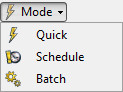
Capture modes. Quick (manual), Schedule and Batch Capturing. Please see Capture Modes - 3.2.0.0 for further information.
3 - Left (Encoder) Panel 
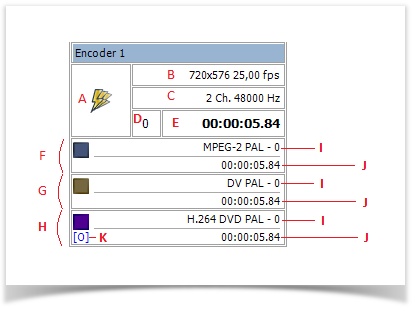
A - Capture mode : Quick (manual), schedule or batch capturing.
B - Source video size and frame rate.
C - Source audio channel count and sample rate.
D - Source buffer
E - Capture or transcode duration.
F - G - H, Profile 1-2-3.
I - Profile name and buffer sample count. If this number icreases from 0, it means the system is not adequate to encode with the given profile. It may eventually cause dropped frames.
J - Capture or transcode duration of the profile.
K - Burned-in video overlay enabled on current profile.
4 - Top (Preview) Panel
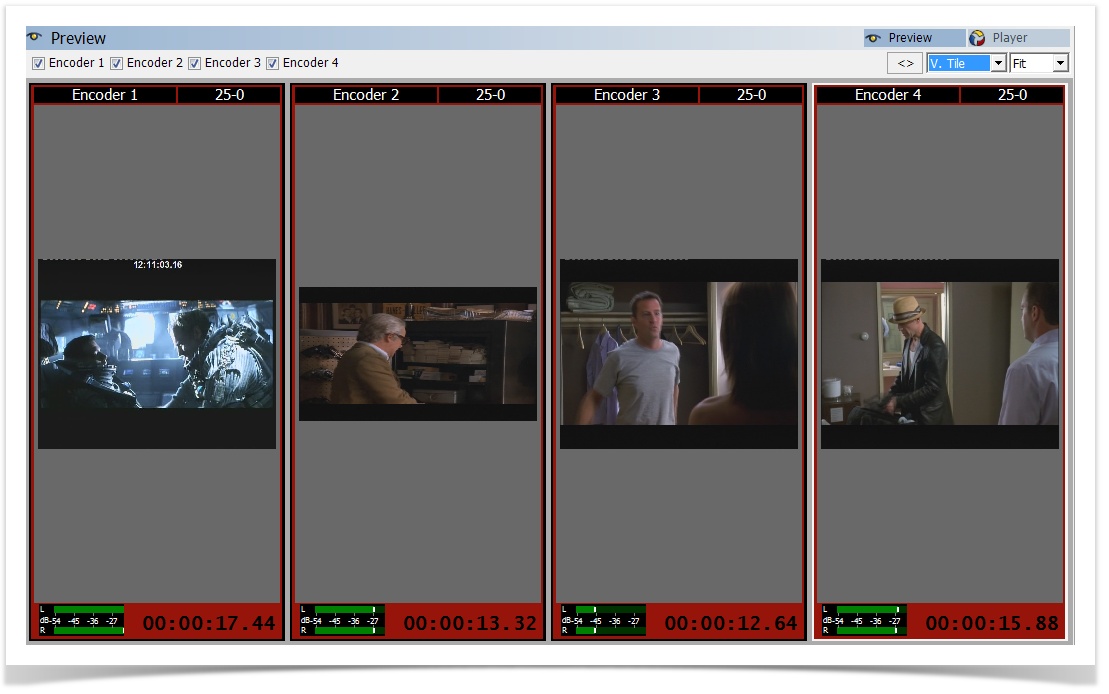
Please see Preview for detailed information about Metus INGEST preview features.
5 Bottom Panel
Report Window

This is where you can see log information from Metus INGEST. Addition and removal of encoders, start,pause,stop and split of the encoding, and creation of files are all logged with date/time info.
You can clear all or older logs (older than the log line that you select) or show/hide information with right click menu. All log data can be reached from Tools/All Logs.
File Window
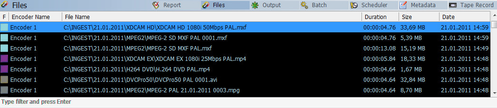
All files created by Metus INGEST (after ingest/transcode operations) are reported in this window with encoder name, file name, duration, size and date information.
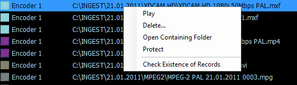
With right clik menu; you can play (with the defined player application) or delete the file or open the folder containing the file. If you click Protect, the file will not be deleted even if it meets the garbage collection criteria. (Please see storage management). Check existence of records refreshes the file window to remove log inserts for files that are already deleted or removed.
Output Window
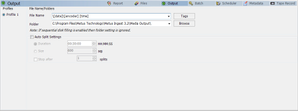
Pre-defined Record Profile : You can choose a profile from pre-defined record profiles to encode . To see how to add Pre-defined Record Profiles , please click HERE .
 This buttons are used to Start and Stop encoding manually from the Output Window for current encoder.
This window shows the output frame of the Profiles. Please see Output Settings for detailed information.
All changes to this window will be applied after next split or re-start of encoder if capturing is in progress. Except “Rename current file”, which applies immediately.
Batch Window
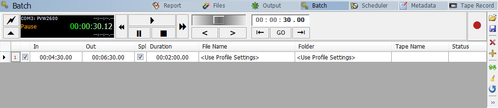
This is where you can use Metus INGEST's automated batch capture feature. Please see batch capture for detailed information.
Scheduler Window
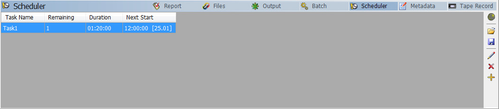
In list view, you can view the created scheduler tasks as a list. You can also see timeline version in a defined date/time interval of the scheduled tasks.
Please see Schedule Mode - 3.2.0.0 for more details.
Metadata Window

You can set either Metus MAM project metadata fields and/or custom user defined fields for metadata insertion during or after encoding.
Please see metadata insertion for detailed information.
Tape Record Window
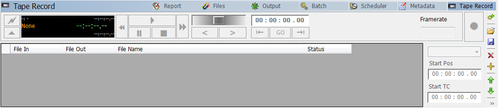
This is where you can use Metus INGEST's print to tape feature. Please see Print to Tape for detailed information.
6 - Status Bar

At the bottom, you can monitor system components by their usage rate.

